Quick Start | Sennheiser TCC M Plus as a Designer Component
Discover essential setup tips and best practices for configuring the Sennheiser TCC M Plus as a Component in Q-SYS Designer.
Overview
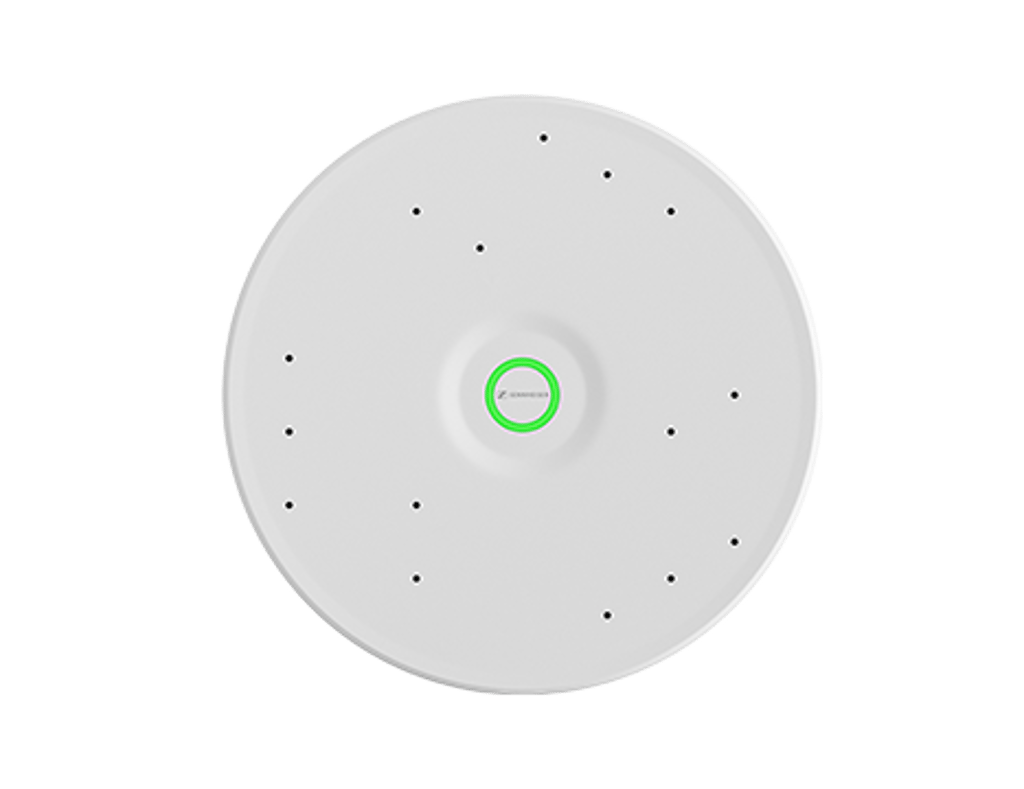
Sennheiser TeamConnect Ceiling Medium (TCC M) Plus now features Q-SYS Extension for Sennheiser PartnerLink, an enhancement which allows for direct integration with Q-SYS Designer to be used as a component for streamilined audio routing and control. With PartnerLink enabled, control data and audio streams can be configured in Q-SYS Designer. No plugin is required.
For detailed information on TCC M Plus properties, controls, and control pins, refer to the following TCC M Plus Help topics in Q-SYS Designer:
System Requirements
- Q-SYS Core processor
- Sennheiser TeamConnect Ceiling Medium Plus
- Device serial number (found on the device label or carton box)
- PC with Q-SYS Designer 10.4 or later installed
- Ethernet switch (PoE-capable, or separate PoE injector for the TCC M Plus) (needs to Q-SYS configured)
- Web browser (for accessing the TCC M Plus local user interface)
- The TCC M Plus and Q-SYS Core must be on the same network
Setup | Installation
Use the instructions below for Q-SYS Connect setup and integration.
Access the Sennheiser Local User Interface
- Locate the device serial number on the device label or carton box.
- Open a web browser and enter: tccmplus-<serial_number>.local
- Log in with your credentials, or set a new password if this is your first login.
Enable PartnerLink Mode
- Navigate to the Device tab.
- In the Operating Mode window, open the drop-down menu. (Operating Mode is in Default by default).
- Select PartnerLink Q-SYS in the drop-down menu.
- The device will begin switching to the new operating mode. This process can take up to 5 minutes.
LED Status Indicators
- Flashing Green - Mode is switching
- Alternating Red and Blue - Device is in PartnerLink pairing mode and ready to connect
Add the TCC M Plus in Q-SYS Designer
- Launch Q-SYS Designer.
- Open the Configurator window — the TCC M Plus hostname will appear in the device column.
- In the Inventory panel, click the + icon to display supported devices.
- Navigate to Audio > Other, select Sennheiser TCC M Plus, and add it to your design.
- Repeat to add multiple TCC M Plus microphones as needed.
Link the Device to Your Design
- In Configurator, locate the TCC M Plus you wish to connect and copy its hostname.
- Paste the hostname into the TCC M Plus Device Properties within the design window.
Save and Run
- Save the design to the Core and run it (F5).
- All control data and audio streams are automatically mapped to the corresponding control blocks in Q-SYS Designer.
Technical Support
For further assistance, please Create a Case or contact Q-SYS Technical Support.